How to Download Games on GameHub – Steam Login, Install and Import Guide

To download games on GameHub, install the app, sign in, link your Steam account (or Epic Games, GOG or EA), choose an install location and tap download on a game you own. GameHub is a free app from the controller brand GameSir that runs Windows PC games on Android phones and handhelds. This step-by-step guide covers the Steam login, game downloads, importing local games, storage and cloud saves.
Key takeaways
- GameHub downloads games you already own on Steam, Epic Games, GOG or EA. It does not give you free PC games.
- The Google Play version supports Steam games only. The version from the official GameHub website also supports non-Steam and local games.
- Since version 6.0.6 (June 2026) you can pick a custom install location and import external Steam games.
- AAA games need about 30–100 GB of free storage each, according to reviewer guidance.
- GameHub needs Android 10 or newer. The latest version at the time of writing is 6.3.1 (September 2026).
Table of contents
- What you need before you download games on GameHub
- How to install GameHub and create an account
- How to log in to Steam on GameHub
- How to download a game on GameHub
- How to play Steam games on GameHub after downloading
- How to import games to GameHub
- Where to download games for GameHub
- Storage tips and cloud saves
- Bottom line
What you need before you download games on GameHub
You need an Android 10 or newer device, the GameHub app, a store account with games you own, and a lot of free storage. A recent Snapdragon chip gives the best results.
- The app: The latest GameHub APK (version 6.3.1) or the Google Play version. Both need Android 10 or newer.
- Chip: Reviewers rate the Snapdragon 8 Elite as the best choice, with Snapdragon 8 Gen 2 and 8 Gen 3 also good. MediaTek Dimensity 9000–9400 chips with Mali GPUs got better support in July 2025. Low-end phones usually run only light or older games.
- RAM: 8–12 GB is the usual recommendation.
- Storage: Plan for 30–100 GB per AAA game, plus space for the app itself (the APK file is about 95 MB).
- Games: A Steam, Epic Games, GOG or EA account with games you bought or claimed for free.
- Controller (optional): Bluetooth or USB controllers make most games easier.
How to install GameHub and create an account
Install GameHub from Google Play or from the official GameHub website, open it, and sign in with a GameHub account. The Play Store version is the easiest to install, but the website version supports more types of games.
- Choose where to get the app. On Google Play, the app is published by "Guangzhou Chicken Run Network Technology Co., Ltd." with the package name com.xiaoji.egggame. The listing is not available in every country. You can also get the APK file from the official GameHub website. Our GameHub download page lists both official sources.
- Install the app. On Google Play, tap Install. For the APK file, allow "install unknown apps" for your browser or file manager when Android asks, then open the file and tap Install.
- Open GameHub and review permissions. Allow only what you need. If you care about privacy, read our guide on whether GameHub is safe first.
- Create or log in to your GameHub account. Follow the sign-up steps on screen. The official app asks you to sign in before you can use your game library.
- Let the app finish its first setup. On first launch, GameHub may load extra components such as drivers. Stay on Wi-Fi and keep the app open until it is done.
Play Store or website version? GameHub arrived on Google Play in November 2025. Because of store policy, the Play Store version only supports Steam games. If you want Epic Games, GOG, EA or local games, install the version from the official website instead.
How to log in to Steam on GameHub
To log in to Steam on GameHub, open your Profile, choose to link an account, and sign in to Steam with a QR code or your Steam username and password. Your Steam library then shows up inside GameHub.
- Open your Profile. Tap the Profile section in GameHub.
- Choose to link a Steam account. Select Steam from the stores you can link.
- Sign in. Scan the QR code with the Steam mobile app, or type your Steam username and password. If Steam asks you to approve the login, confirm it in the Steam app or enter the code it sends you.
- Wait for your library to sync. Your owned games appear in the library. Since version 6.2.0, the library is grouped by platform and store, so your Steam games sit together.
Linking Epic Games, GOG and EA accounts works in a similar way in the website version. EA support was added in version 6.0.6.
The Steam link is more than a download button. Version 6.0.6 added Steam friends, achievements, chat, invites, the Steam overlay, Workshop and DLC management, and joining lobbies.
Only type your Steam password inside the GameHub app or the official Steam app. Never enter it on a website that promises free games or "GameHub unlock" tools.
How to download a game on GameHub
To download a game on GameHub, open your library, tap the game, check its compatibility rating, choose an install location and start the download. Large games take a long time, so use fast Wi-Fi and keep your phone charging.
- Find the game. Open your library or use search. Since version 6.3.1, the AI search understands nicknames and typos, so short names and small spelling mistakes still work.
- Check the compatibility rating. GameHub shows a rating that tells you how well the game is expected to run. This system was revamped in version 6.0.6. You can also check our GameHub compatibility list for community reports.
- Choose the install location. Since 6.0.6, you can pick a custom install location. Choose the storage with the most free space.
- Start the download. Tap download and keep GameHub open. Use Wi-Fi rather than mobile data, because AAA games can be 30–100 GB.
- Wait for the install to finish. After the download is complete, GameHub installs the game and you can launch it from your library.
How to play Steam games on GameHub after downloading
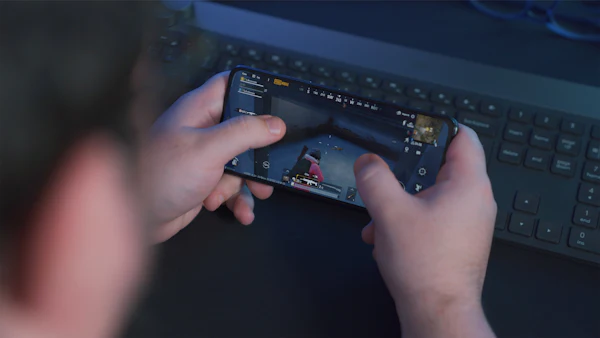
To play a Steam game on GameHub, tap the game in your library and launch it. GameHub applies a default setup, and you can then change resolution, FPS limit, upscaling and controls in the game's settings page.
Behind the scenes, GameHub uses Wine (a Windows compatibility layer), a modified Box64 (x86/x64 to ARM), DXVK and VKD3D (DirectX to Vulkan) and bundled GPU drivers such as Turnip for Adreno. That is why a game's first start can feel slow.
First-launch settings to check
- Resolution: Start at 720p. DROIX used 720p for its Snapdragon 8 Elite benchmarks.
- FSR 3 and frame generation: AMD FSR 3 upscaling and frame generation can raise FPS in heavy games.
- FPS limit: A cap keeps the phone cooler and the frame rate steadier.
- Performance HUD: Turn it on to see your FPS while you play.
Version 6.3.1 also added launch guidance to help you through a game's first start. For full tuning by chip, see our GameHub best settings guide.
Controls
GameHub supports virtual on-screen controls, a touchscreen mouse, Bluetooth and USB controllers, and keyboard and mouse. Version 6.0.6 added gamepad-to-keyboard and gamepad-to-mouse mapping plus a new virtual button layout editor. Version 6.2.0 added key and mouse mapping with cloud sharing, so layouts can be shared between players.
How to import games to GameHub
You can import local games only in the GameHub version from the official website. The Google Play version supports Steam games only, so it does not offer non-Steam imports.
Local games are Windows games you own outside the linked stores, for example a DRM-free installer you bought. To import one:
- Use the website version. Install GameHub from the official site, not from Google Play.
- Copy the game to your device. Move the game folder to your phone storage with a USB cable or a file manager.
- Use the import option in GameHub. Follow the prompts to select the game on your storage. Button names can change between versions.
- Launch and adjust settings. Tune it like a Steam game.
Version 6.0.6 also added a way to import external Steam games, which helps if you already have Steam game files and do not want to download them again. Since 6.2.0, mods are supported for Steam titles and for locally imported games.
Only import games you own. Cracked or pirated game files break copyright rules and are a common source of malware.
The community-made GameHub Lite APK adds external launcher support, but it is not made by GameSir, so use it at your own risk.
Where to download games for GameHub
The safe place to get games for GameHub is a real PC game store: Steam, Epic Games, GOG or EA. Buy or claim a game on the store, and it appears in GameHub after you link your account.
| Source | How it works in GameHub | Which GameHub version |
|---|---|---|
| Steam | Link in Profile, download in-app, cloud saves | Google Play and website |
| Epic Games | Link your Epic account | Website version |
| GOG | Link your GOG account | Website version |
| EA | Supported since version 6.0.6 | Website version |
| Local games you own | Import from device storage | Website version only |
Free-to-play games and store giveaways also appear once you claim them. But online games with anti-cheat, such as competitive shooters, generally do not work under translation.
Avoid sites that offer "game files for GameHub" or "GameHub games free download". These files are often fake, cracked or packed with malware. If you are looking for GTA, read our honest guide to GTA 5 on GameHub.
Storage tips and cloud saves
Keep plenty of free space, install big games to a custom location, and let Steam cloud saves protect your progress. A full phone is one of the most common reasons a big download fails.
- Check space first: AAA games need about 30–100 GB each, plus room for updates.
- Use custom install locations: Available since 6.0.6. Put large games on the storage with the most free space.
- Remove finished games: With cloud saves, you can download them again later.
How cloud saves work
GameHub supports Steam cloud saves. When a game uses Steam Cloud, your progress syncs with your Steam account, so you can continue on another device. Version 6.2.0 fixed issues with cloud-save sync. GameHub for Mac (public beta since 11 April 2026) also syncs cloud saves, so you can switch between Android and an Apple Silicon Mac. Before you uninstall a game, let the sync finish on a working connection.
Bottom line
Downloading games on GameHub is simple once you know the order: install the app, sign in, link Steam (or Epic, GOG and EA on the website version), check the compatibility rating, pick an install location and download. Use only games you own, keep 30–100 GB free for big titles and rely on cloud saves for your progress.
Download GameHub APK 6.3.195 MB · Android 10+ · Official sources only
Download APKFrequently Asked Questions
How do I download games on GameHub?
Install GameHub, sign in, link your Steam account from your Profile, then open your library and tap download on a game you own. Check the compatibility rating and choose an install location before you start.
How do I log in to Steam on GameHub?
Open Profile in GameHub, choose to link a Steam account, then scan the QR code with the Steam mobile app or enter your Steam username and password. Your Steam library will then appear in GameHub.
Can I play non-Steam games on GameHub?
Yes, but only with the version from the official GameHub website. The Google Play version supports Steam games only because of store policy, while the website version also supports Epic Games, GOG, EA and local games.
Where can I download games for GameHub for free?
GameHub does not provide free PC games. You can claim free-to-play or giveaway games on stores like Steam and Epic Games, but avoid sites that offer free "GameHub game files", as these are often cracked or contain malware.
How do I import games to GameHub?
Use the GameHub version from the official website, copy a game you own to your device and use the import option in the app. Since version 6.0.6 you can also import external Steam games.
How much storage do GameHub games need?
Reviewer guidance says AAA games need about 30–100 GB each, plus room for updates. Since version 6.0.6 you can choose a custom install location to use the storage with the most free space.
Why is my GameHub game download not working?
The most common causes are low storage, a weak internet connection or a store login problem. See our GameHub not working fix guide for step-by-step solutions.